

Each DUGA product page contains detailed information about a specific video title – including the label, actress, available formats, and device compatibility. For new users, the Japanese layout can be confusing, so this guide explains what each section means and how to use it effectively.
1. Basic Information
At the top of each product page right next to the cover image, you’ll find the essential details about the content:
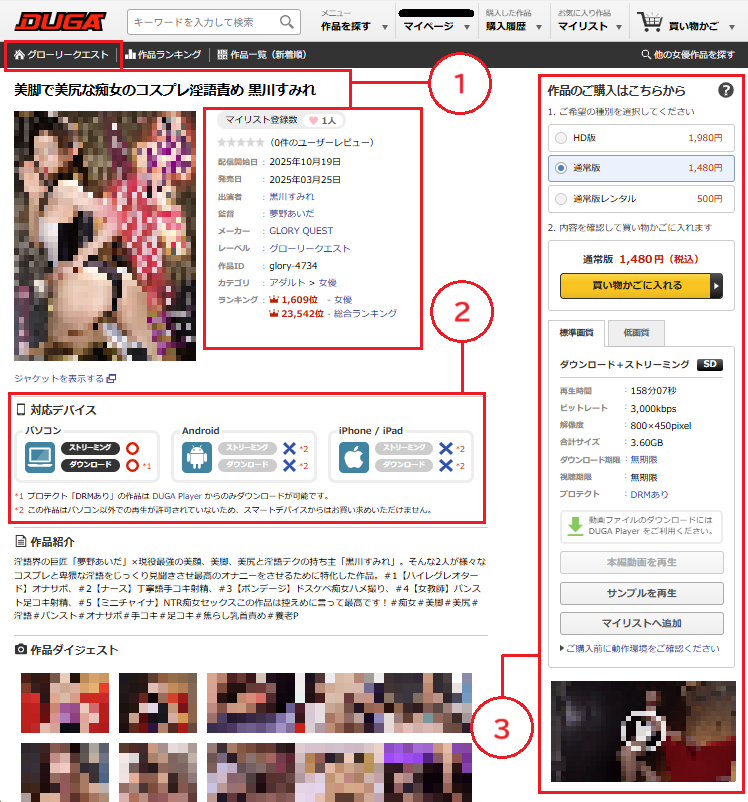
- My List Registrations (マイリスト登録者数) – Number of users who added this title to their My List.
- User Review (ユーザーレビュー) – The total average review rating.
- DUGA’s internal distributed date (配信開始日) – The date this content became available on DUGA.
- Release Date (発売日) – Original DVD release date.
- Actress (出演者) – The actresses featured in this product.
- Maker (メーカー) – The production company that created the work.
- Label (レーベル) – A sub-brand or publishing division under the maker.
- Series (シリーズ) – If part of a recurring series, it will be listed here.
- Director (監督) – Name of the director.
- Category (カテゴリ) – Genre or type of content.
- Ranking (ランキング) – Position in DUGA’s internal ranking.
Not all products will display the same information.
If you find a title you like, check the Label in the basic information section or visit the Label page (located below the DUGA logo) to discover more titles that may interest you.
If you’re interested in other works by the same actress, click the actress’s name to view all of her available products.
2. Supported Device
While every product supports PC playback, not all contents are available on Android or iOS devices.
Rentals are always DRM-protected and require the DUGA Player for downloads. On iOS, DRM-protected titles are available for streaming only if available.
Here are some of the most common patterns you’ll see:
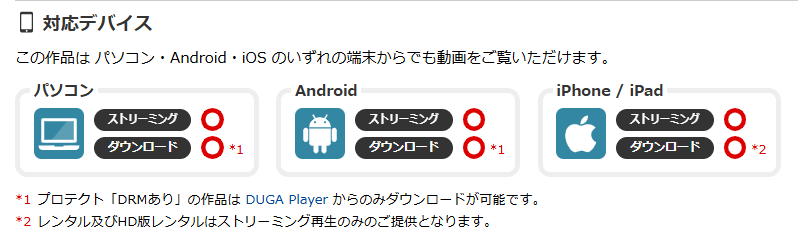
DRM-free content allow both download and streaming on all devices once purchased.
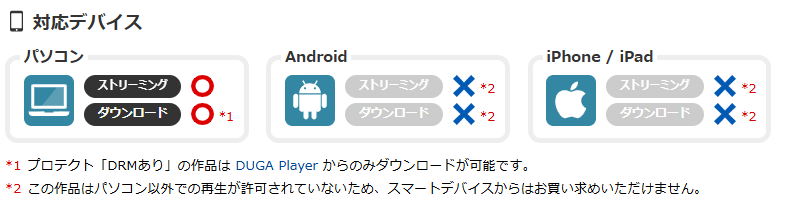
DRM-protected content, only available on PC. Streaming is available through the browser, and downloads require the DUGA Player.
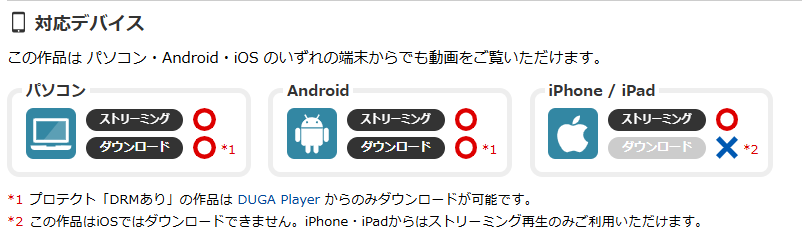
DRM-protected content. Available to stream on all devices.
To download, use the DUGA Player on PC or Android.
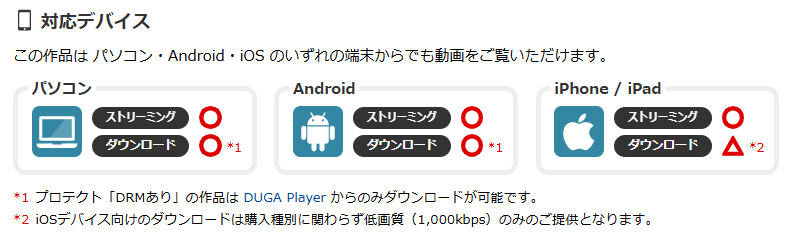
DRM-protected content. Available to stream on all devices.
To download, use the DUGA Player on PC or Android. iOS users can download a low-resolution DRM-free version.
DRM-protected content needs DUGA Player for playback and download. Not available on other media player.
3. Purchase Content Column
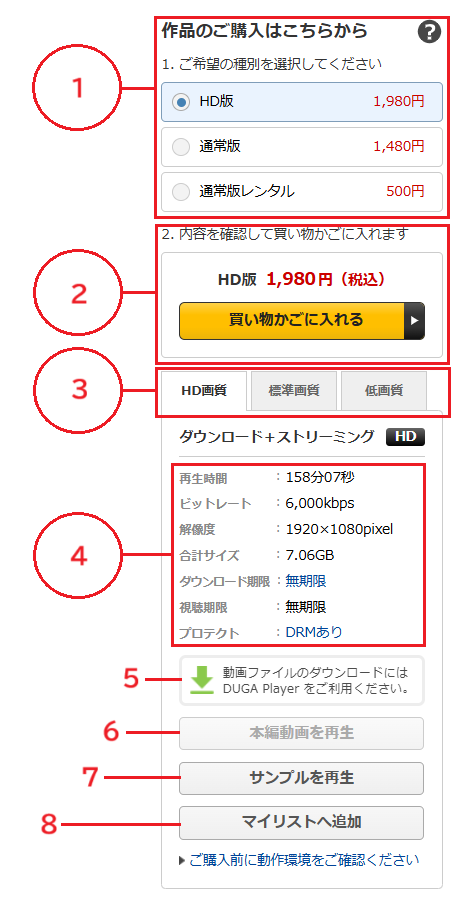
Before you add the content to your shopping cart make sure you check the Purchase Content Column on the right side of the page to check if you have the right one or to view sample, add to My list so you can check back later. Here is also the place to stream your content or download if DRM-free after your purchase.
1. Purchase or Rental – Here you can choose between one time purchase or rental. In the picture sample on the right, one time purchase in HD is selected. You can also select one time purchase in Standard Definition or SD rental. Does not have the option for HD rental. Not all content is available for rental and not all content is available in HD. You can filter content from the search page sidebar.
2. Add to Shopping Cart – The one that you selected in #1 will be added to your cart. If their is only one option for purchasing a product, for example one time purchase of SD only, #1 will not be present and #2 will be at the top.
3. Available Resolution – If you purchase or have HD selected at #1 you also have the right for standard and low resolution if available.
4. Media Detail – Here you can check for duration, bitrate, resolution, file size, download deadline, viewing period, protection – if the content is DRM-free or not. If the content has DRM-free option you can also check for number of files and file format.
5. DUGA Player Link – If you see this link, this is also a sign that the content that you are looking is DRM-protected.
6. Play Video Button – Stream play your video from here after purchase.
7. Play Sample Button – Only up to 5 sample a day for non-members. Not on screenshot on the right but you can also play the sample by clicking the media player located on the bottom of the Purchase content column check the first screenshot for reference.
8. Add to My List – Add to your My list for future purchase.
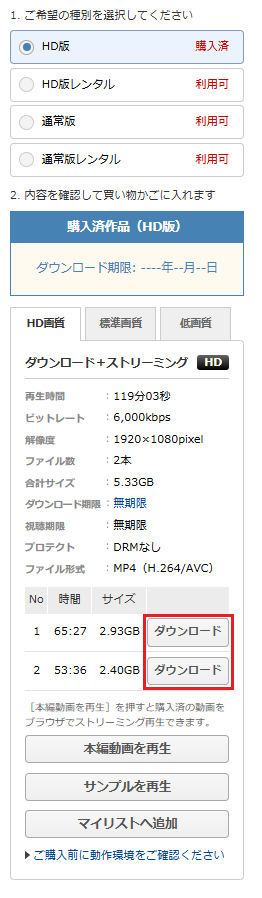
Here is what it would look like after you purchase a DRM-free content. The button that is squared off in the screenshot is the download button.
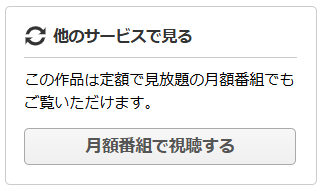
If the product is available on a subscription channel you would see the button on the right below the Purchase content column and above the sample media player. It would direct you to the same product page but the add to Shopping Cart is changed to Subscribe to this channel with the price of the channel.
Conclusion
Now that you understand how the DUGA product page works – from basic information like maker, label, and actress details to device compatibility, DRM settings, and available purchase options – you can browse and enjoy content more confidently.
Before purchasing or renting, always check the supported devices, and whether the title is DRM-free or protected. Taking a moment to confirm these details ensures smooth playback, prevents compatibility issues, and helps you get the best experience from DUGA.
With this guide, you’ll be able to search, stream, and download your favorite videos more efficiently while discovering new content that matches your preferences.