

DUGA is one of Japan’s largest adult content platforms, but for international users, the website can be difficult to navigate – especially since it’s written entirely in Japanese. This guide will help you understand the main layout and teach you how to find content efficiently.
Enable Chrome’s Auto-Translation
Before exploring the site, it’s best to enable Chrome’s automatic translation feature. If you use Google Chrome, you can have Japanese webpages translated automatically by adding Japanese to your “Automatically translate these languages” list. This makes browsing DUGA much easier.
How to enable translation:
- Open
chrome://settings/languages - Under “Google Translate,” turn on “Use Google Translate”
- Under “Automatically translate these languages,” select “Add languages” and add Japanese
Once enabled, Chrome will automatically translate DUGA’s website into English, making navigation much easier.
The Main Header Bar
The header bar at the top of every DUGA page contains the main shortcuts:

- DUGA Logo – Returns to the main page.
- Keyword Search Box – Only works with Japanese text. You can use ‘AND SEARCH’ to show results containing both keywords, or ‘OR SEARCH’ to show results containing either. I mainly use it to search for my favorite actresses.
- Menu – Click to open the main search page or hover to open a dropdown menu.
- My Page – Access your account details or hover to open a dropdown menu (includes log out option).
- View Purchased Items – See your list of purchased videos / Login (if logged out).
- My List – View your saved content added to My list / Join DUGA for Free (if logged out).
- Shopping Cart – Check or complete your purchases.
- Subscription Channels – Monthly (30-day) unlimited streaming plans.
- This link may not appear if Chrome auto-translation is on. This link is only available on Main page under the header. Visit the Subscription channel page directly.
Menu – Dropdown Menu
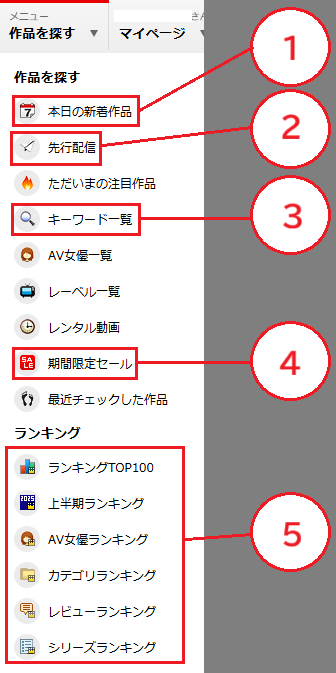
Here are some key features in the dropdown menu:
1. Today’s New Arrivals – Latest videos updated daily.
2. Advance Release – Early access to upcoming titles before DVD release.
3. Keyword list – View popular and trending search terms.
4. Limited time Sale – Discounted content.
5. Rankings – Browse multiple rankings (actresses, categories, reviews, etc.)
If you’re looking for new content and early releases, check out #1 and #2.
I recommend selecting a keyword from the Keyword List, then choosing a category in the Search page that interests you to narrow down your search.
DUGA Main page Sidebar
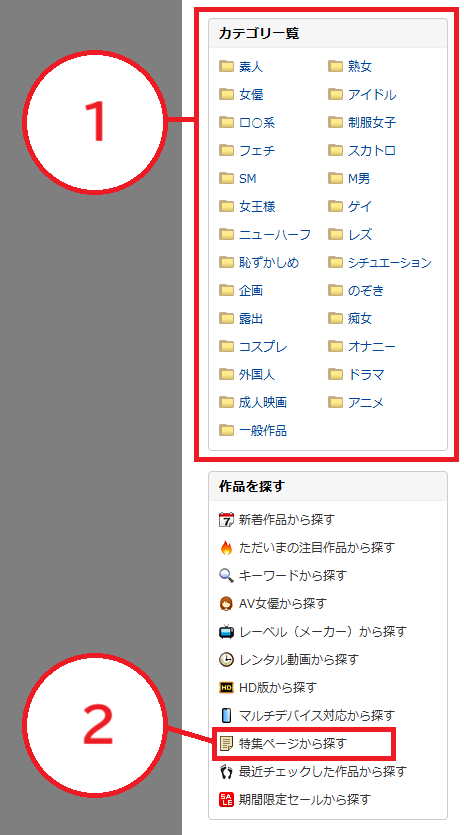
I highly recommend starting your content search from the sidebar. Located on the right side of the main page (and below the video sample player), the sidebar provides quick access to useful browsing tools.
1. Category list – Explore the site easily by browsing genres, themes, or niche interests – perfect for discovering new content that matches your preferences.
If you’re not familiar with Japanese keywords, this is one of the easiest ways to start exploring DUGA. Simply choose a category that interests you and browse from there.
2. Special Feature page – This page groups content by niche, unique genre, or general theme. Each includes information such as sale info, new releases, popular works, featured works, latest reviews, ranking details, recommended series, related keywords, and grouped label lists, all in one place. DUGA featured works page is a great way to learn which labels specialize in certain niches or trending content on DUGA.
DUGA Search page – Sidebar
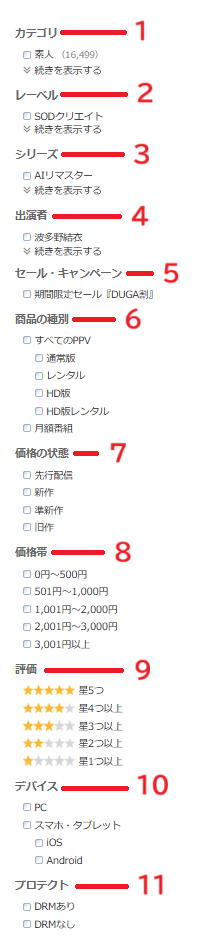
Located on the left side of the Search page. You can select 1 checkbox from each list to filter multiple categories. Keyword searches will be prioritized. *Image is cropped to make it smaller.
Here are some Key features of the Sidebar:
1. Category – Same category list from the Main page sidebar. The difference is that if you select a category, you can also select a subcategory from that list. For example, if you select フェチ (Fetish) from the category, a list of subcategories shows up like おっぱい (Boobs), おしり (Butt), etc. The number in brackets is the number of contents in that category.
2. Label – If you have a favorite maker, select from here. Best used with #3.
3. Series – If you select a label from #2, you can search the series made by the label that you selected.
4. AV actress – The list does not show all AV actresses, so I recommend using the Keyword Search Box with “and/or search” with keywords.
5. Sales and Campaign – Products that are on sale.
6. Product type – Checkboxes for availability in standard definition PPV or rental, high definition PPV or rental, and available on subscription plans.
7. Price Status – Video content that is newer has a higher price range. It usually takes about 6 months for a video to move to the ‘old product’ category.
8. Price range – Rental and PPV have different price ranges. For example, rental in HD is 100 yen and the PPV version in HD is 300 yen.
9. Reviews – Most content does not have any reviews, so you can skip this part.
10. Device – Availability on other platforms like iOS and Android. Important if you’re not a PC user.
11. DRM Protection – Probably the most important aspect of the key features. Search for content with or without DRM. Understanding DUGA’s DRM options helps you choose between downloadable and protected streaming content.
DUGA Search page – Keyword search and other
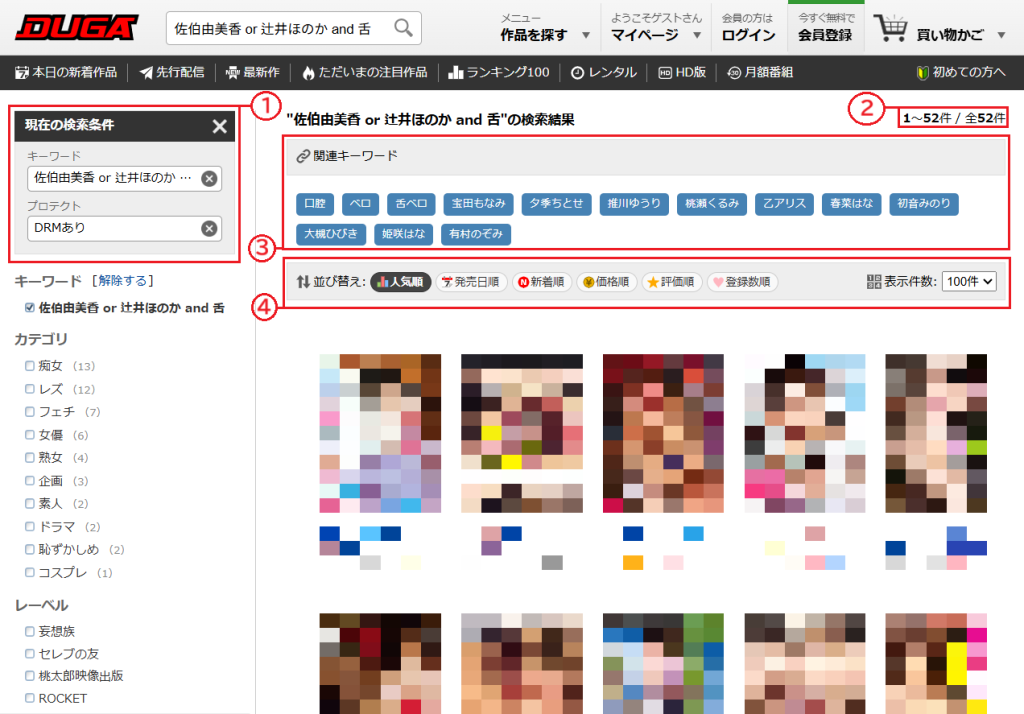
Here is an example of a search result screen.
1. Current search result – I searched “佐伯由美香 or 辻井ほのか and 舌” (Saeki Yumika or Tsujii Honoka and tongue) with the keyword search and enabled DRM protection. This search shows videos featuring either actress, with the keyword “tongue,” filtered to display DRM-protected content.
2. Number of Hits – The total number of search results on the right and the number of results shown on this page on the left. When this number shows more than 1 but your page does not show any results, try refreshing the page.
3. Related keyword – Related keywords or actresses in the search results. When you select a related keyword, your checkmarks on the sidebar will reset.
4. Sort By Options – From the left:
- Sales (default): Most sold in the past 7 days
- Release Date: Sorted by newest titles
- New: Based on DUGA’s internal “newly distributed” date
- Price: From cheapest to most expensive
- Ratings: Sorted by user ratings
- Favorites: Sorted by most added to My List
The ratings and favorites don’t change much, so check them only if you’re interested. You can also change the amount of content shown by choosing a number on the right.
Conclusion
Overall, the DUGA Search Page is one of the most powerful tools on the site. By combining filters like Category, Label, and DRM status, you can quickly narrow down thousands of titles to find exactly what you’re looking for. If you’re new to DUGA, start simple – try selecting a few genres or actresses to get familiar with how the filters work. Once you understand the layout, you’ll be able to explore the site much more efficiently and discover hidden gems that match your specific interests.